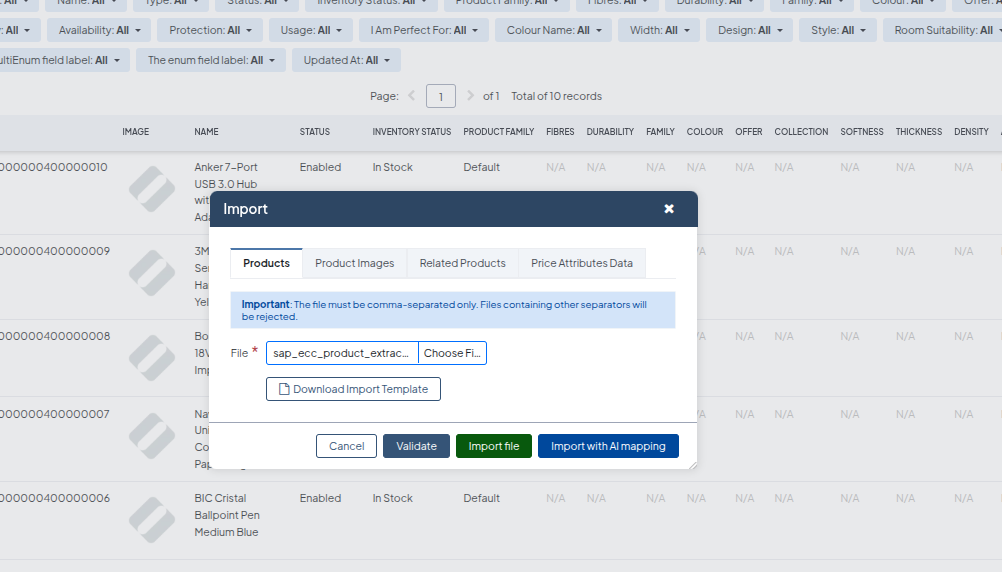
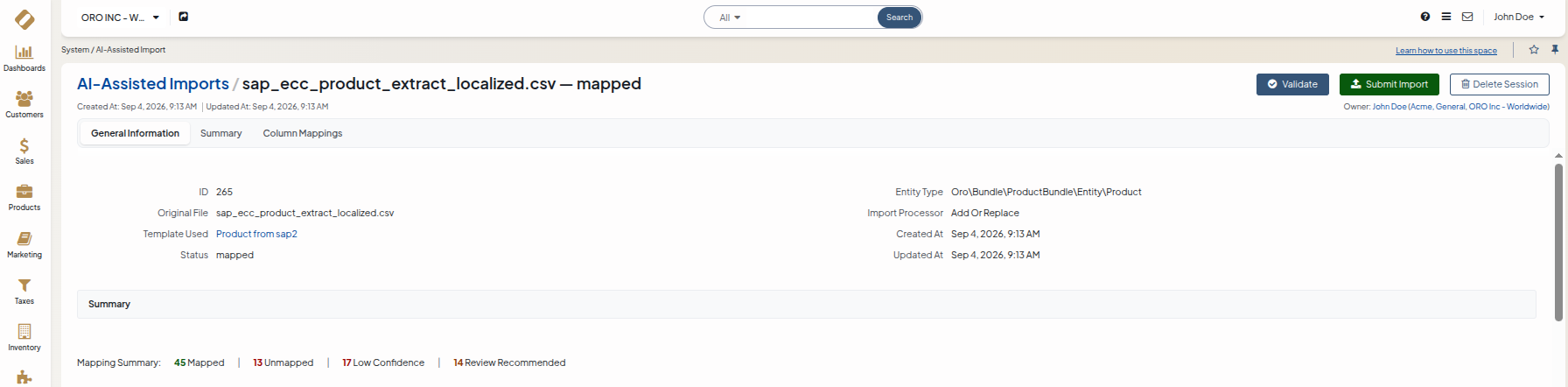
AI-Assisted Import Bundle is an OroCommerce extension. It adds an AI column-mapping layer on top of the standard Oro CSV import pipeline. For the Oro importer, a technical CSV schema is normally necessary. This schema has dot-separated header paths, internal identifiers, localization fallback patterns, and relation conventions. With this bundle, business users import data from files in their own formats, and they do not write a schema first.
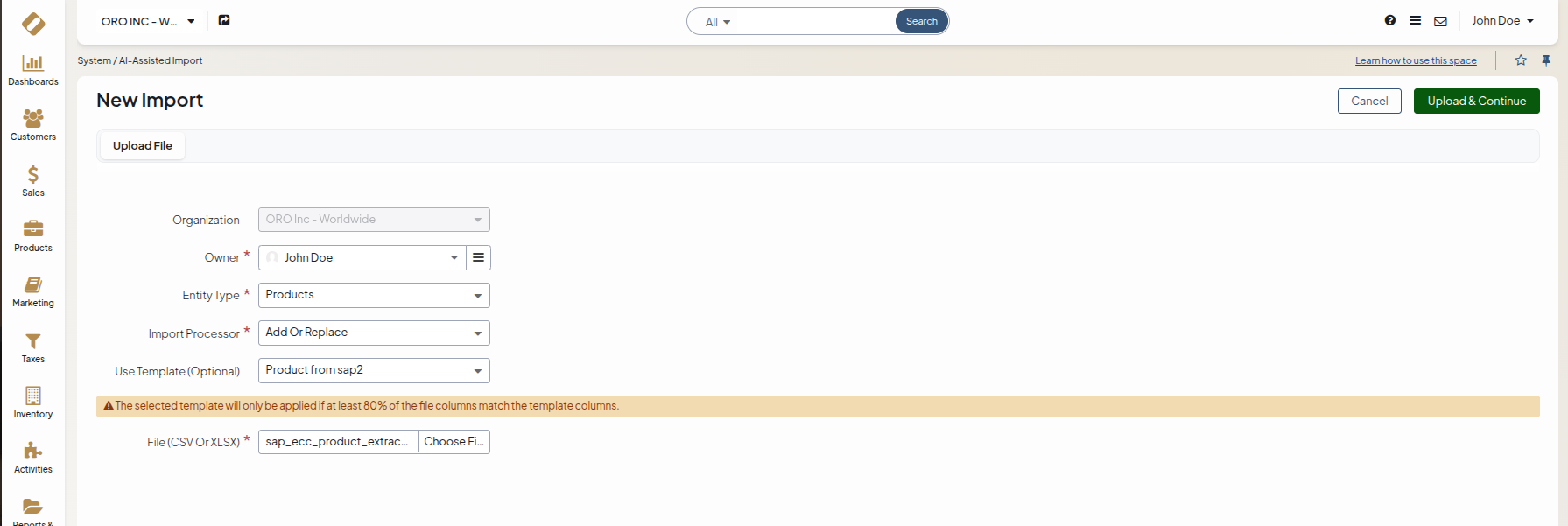
When a user uploads a file, the bundle examines it. Then the bundle asks an external AI mapper service to map the file columns onto the import schema of the selected entity. The bundle shows the mapping in an inspection grid. The user can examine each mapping, change the target field, and make value transformations for each column with a preview. The user then gives approval for the result.
The server changes the file into a correct Oro CSV file. The bundle sends this file through the Oro validation pipeline, and then to the standard Oro import. One session monitors all of these steps with a clear status lifecycle.
The bundle also makes a knowledge base that you can use again. A completed mapping becomes a template. For future imports of the same entity, the bundle uses the template again without user action, and it asks the AI less frequently. The bundle operates with the Oro ImportExport infrastructure and the message queue. It keeps its own AI provider configuration as a standard Oro integration.
Use this bundle to import B2B catalog data and business data. It imports products, prices, inventory, categories, and customers from different source files, for example ERP or SAP extracts. You do not prepare the CSV files manually.
What the Bundle Does
- AI Column Mapping An external AI mapper service maps the source file columns to the import fields of the target Oro entity. Each mapping has a confidence score. The user can examine the mappings with low confidence first.
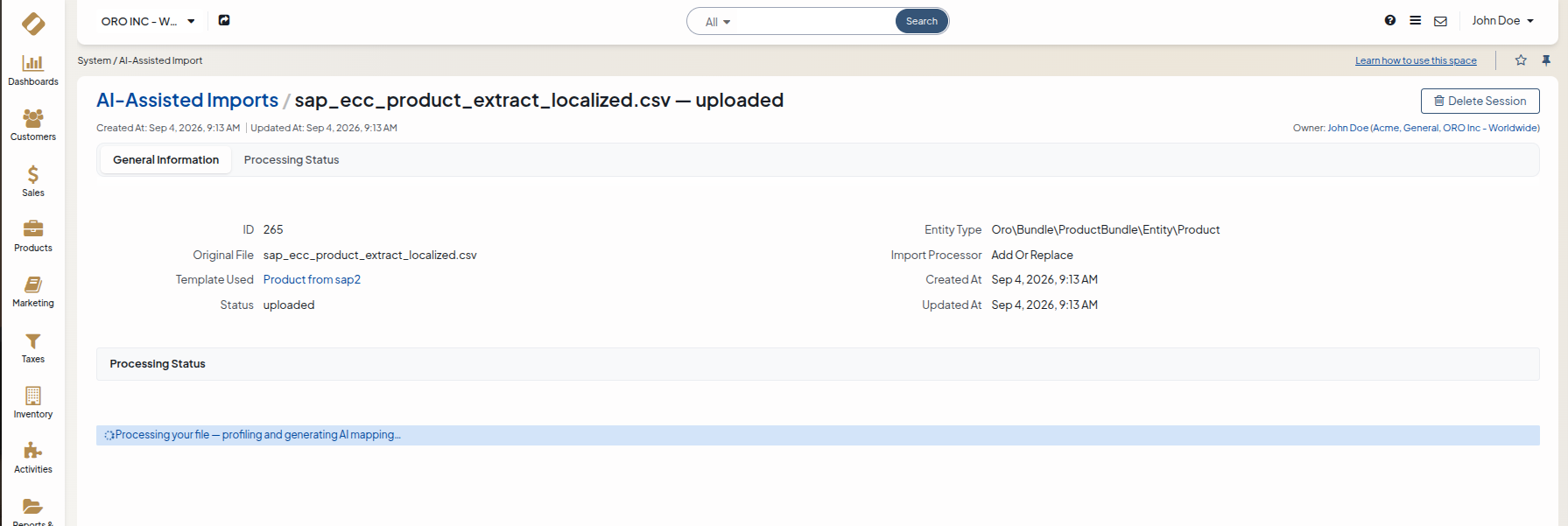
- Session Status Lifecycle The bundle records each import as an
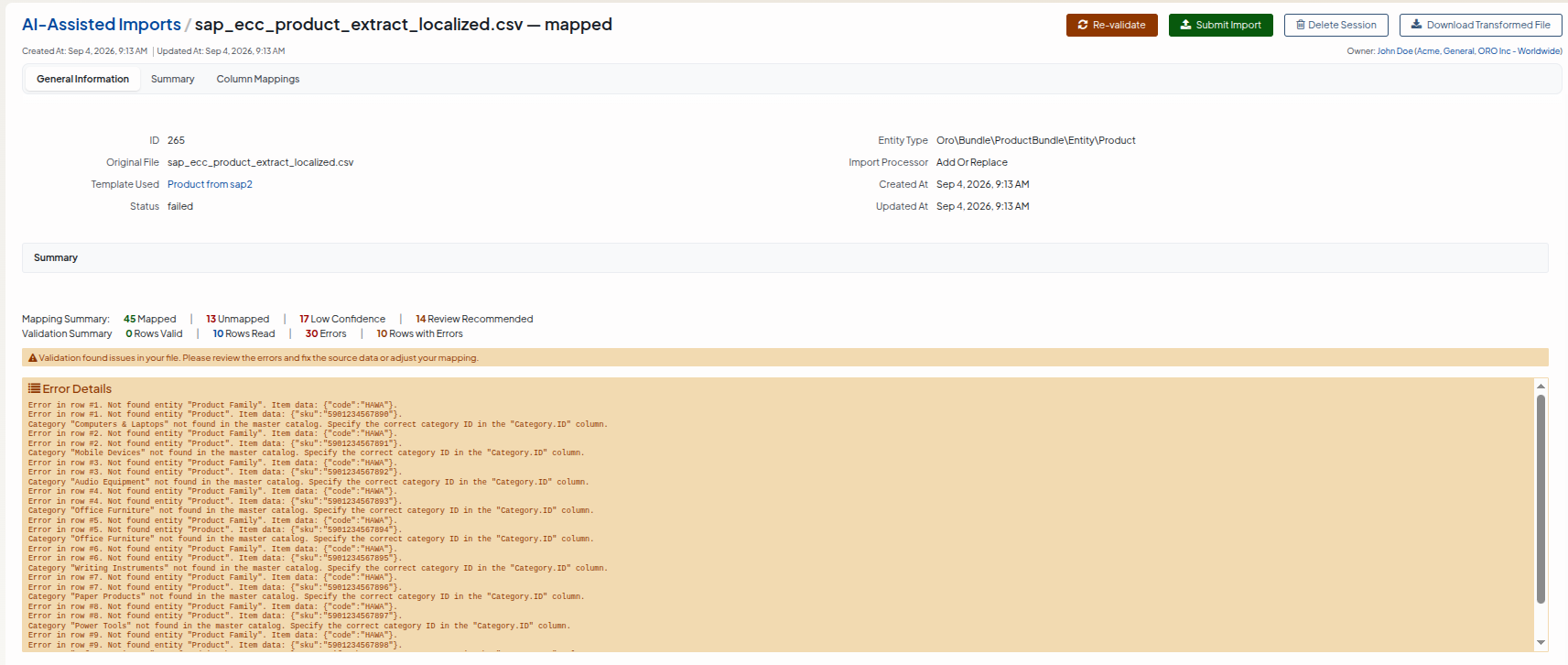
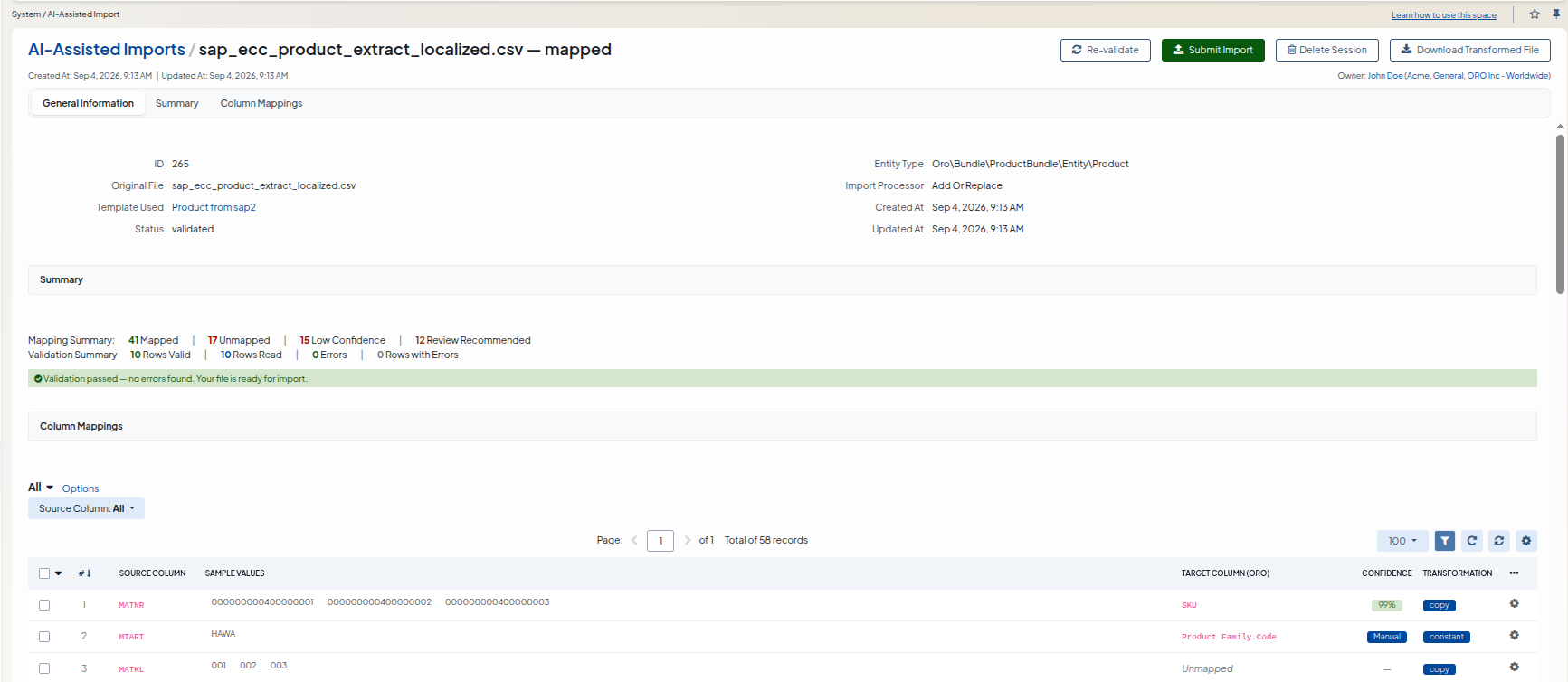
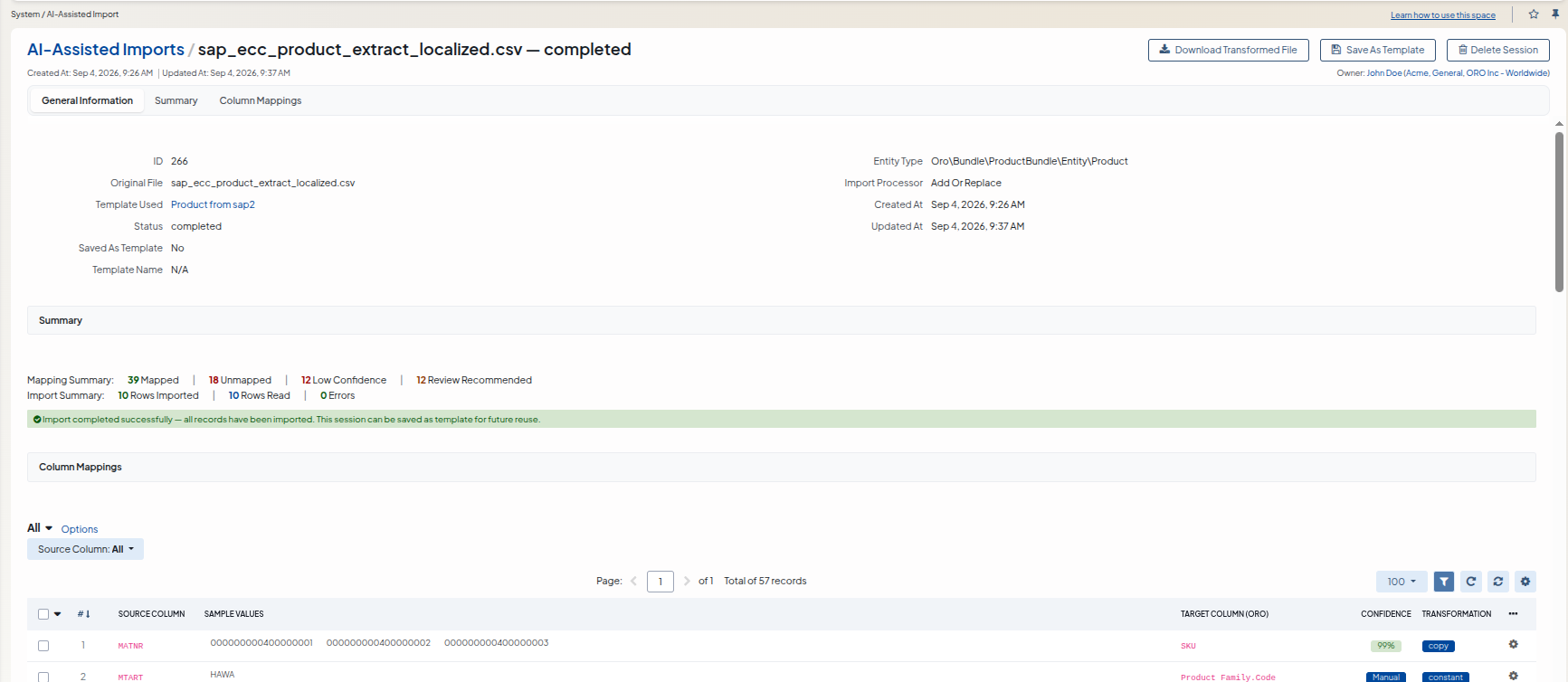
AiImportSession. The session moves through these statuses: Uploaded → Profiled → Mapped → Validating → Validated → Importing → Completed. A pipeline-level error (a background job failure, or a stale/timed-out job) moves the session to Failed. Validating and Importing can also land the session on Failed — the underlying Oro job completed, but it reported row-level errors; the session then keeps the validation or import results for review. Completed means the import ran with zero row errors — only such a session can be saved as a template. From Failed, the user can adjust the mapping and retry: Validate again, or Submit Import directly (see Failed Status and Retries below). The view page does a status check at regular intervals. It shows the new status as the background jobs continue. - Automatic File Examination After the upload, a background job asks the mapper service for the headers, the sample rows, and the metadata of the file. This job operates without user action. The AI prompt and the inspection grid use this data.
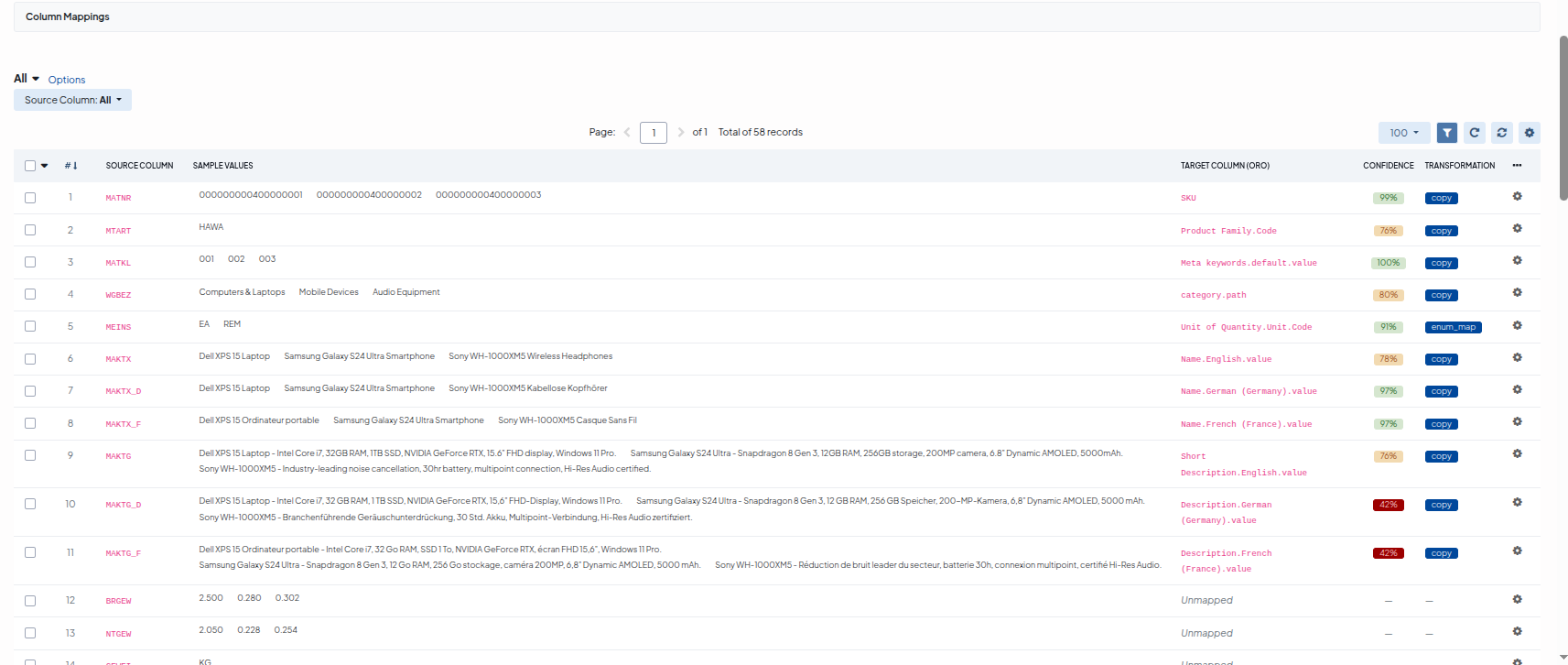
- Mapping Inspection Grid A datagrid shows each source column with its sample values, the target column in use, the AI confidence value, and the transformation chain. To change a target column, use the dropdown in the grid. The dropdown has the correct import fields of the entity. The grid shows the confidence with colors: danger below 0.7, warning below 0.9, and no color at 0.9 or more. A change from the user replaces the AI value.An AI Mapping Summary panel above the grid shows the counts of Mapped, Unmapped, Low Confidence, and Review Recommended columns. The panel shows the new counts after inline edits and mass actions. You do not reload the page.
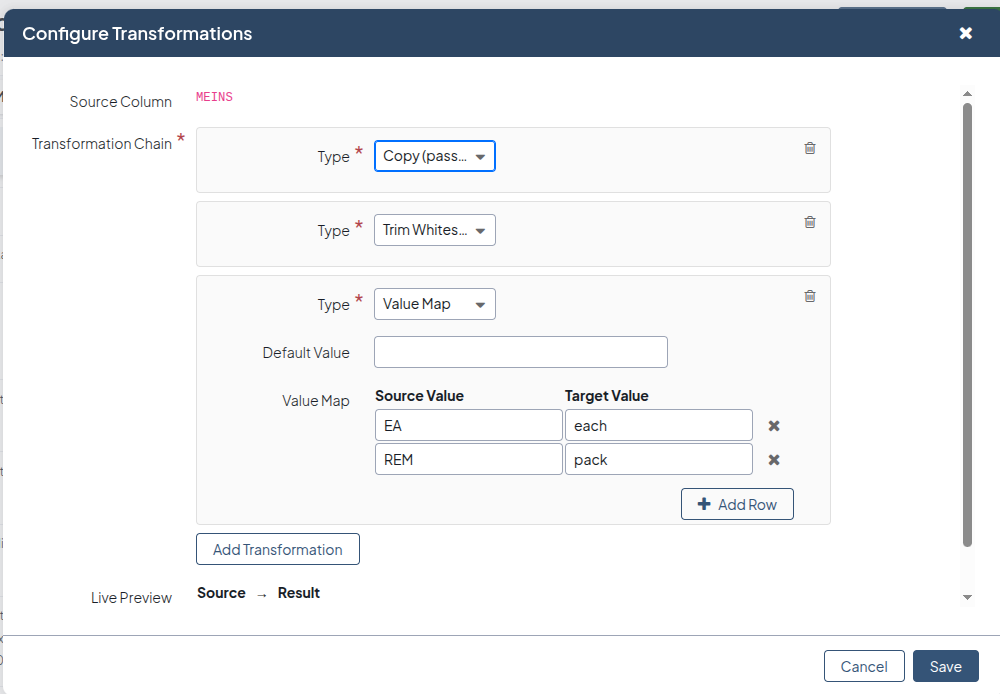
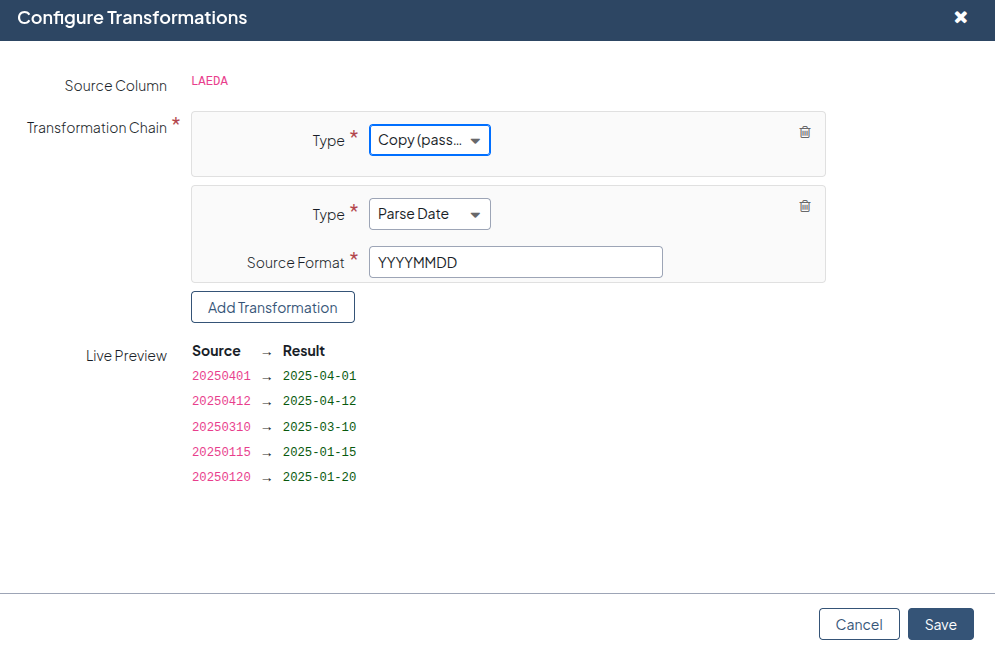
- Value Transformations for Each Column You can attach a chain of transformations to any column. Before you keep the chain, you can preview the result against the sample values of the file. The bundle has these transformation types:
copy(pass-through),constant,date_parse,enum_map,lowercase,uppercase, andtrim. Thedate_parsetype changes dates to ISO output with service tokens. Theenum_maptype changes one value to a second value, and it has a default. When you map a column for the first time, the bundle adds acopytransformation. - Mass Actions The mapping grid has two mass actions. Reset to AI returns the selected columns to the AI mapping. It removes the changes from the user and the transformations. Unmap removes the target of the selected columns. For large selections, the bundle writes the changes to the database in batches.
- File Transformation on the Server After you give approval for the mapping, the mapper service changes the source file into an Oro CSV file. The bundle also makes a second copy for download. The user can examine this copy to see the accurate data for the import.
- Standard Validation and Import The validation and the import use the Oro
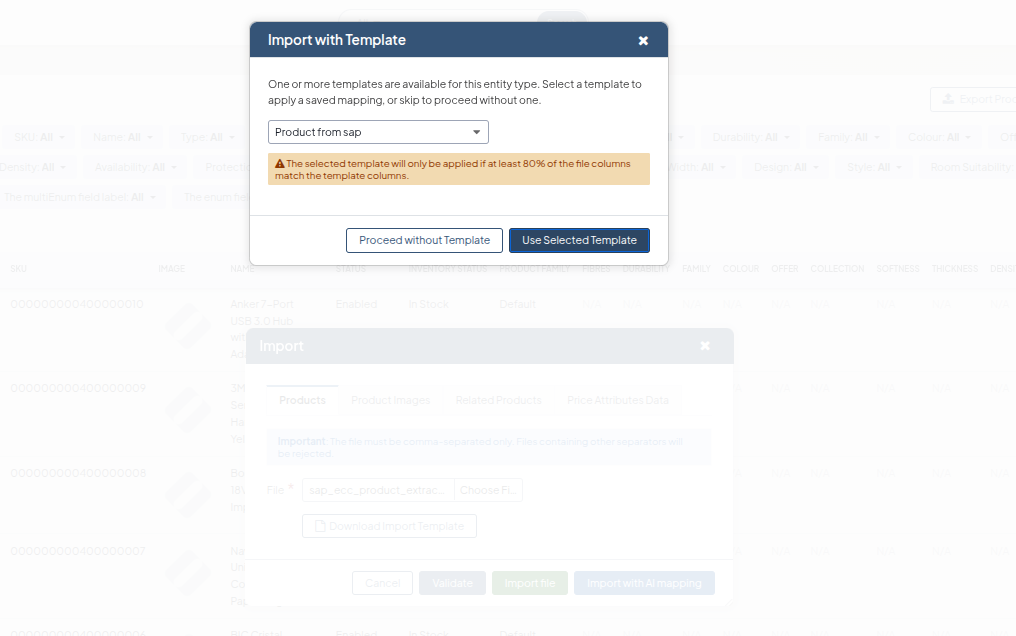
ImportExportBundlepipeline through the message queue. The session shows the validation results and the import results on the view page. If a job reports errors, the page also shows the content of the error log. - Mapping Templates You can make a named template from the mapping of a completed session. For the next import of the same entity, the bundle shows the templates that agree with the file. If a template includes 80% or more of the source columns, the bundle uses that mapping and does not ask the AI.
- Recovery If the mapper service is not available, the bundle flags the affected sessions. A cron command sends these sessions to the queue again each hour, after the service becomes available. A validation job or an import job can be longer than the 30-minute timeout. The next status check then moves the session to Failed. The session does not stay in a processing status. This is separate from a row-level failure — see Failed Status and Retries below for how the user retries a Failed session directly from the view page.
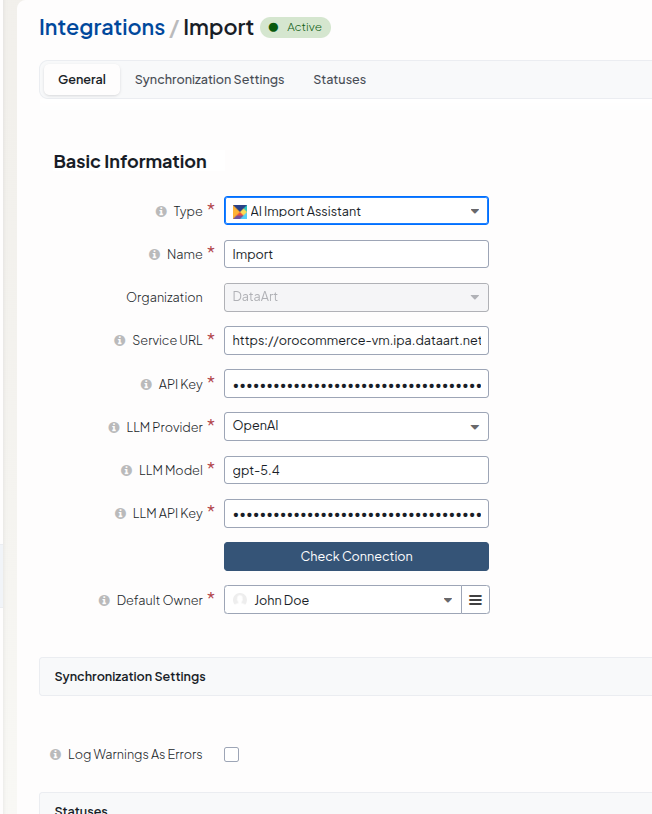
- AI Configuration Configure the mapper service endpoint and the LLM provider, model, and credentials as a standard Oro integration. The integration uses a channel and a transport. The bundle keeps the API keys encrypted. Changes to the application configuration or to the code are not necessary.
- Console Tools A console command shows the target schema for an entity and a processor, as a table or as JSON. Use this command to see how the bundle shows the schema to the AI. It also shows how the bundle changes repeating-group fields into
(\d+)patterns. Do this check before you install the bundle in production.